 TapToConnect
The calendar.
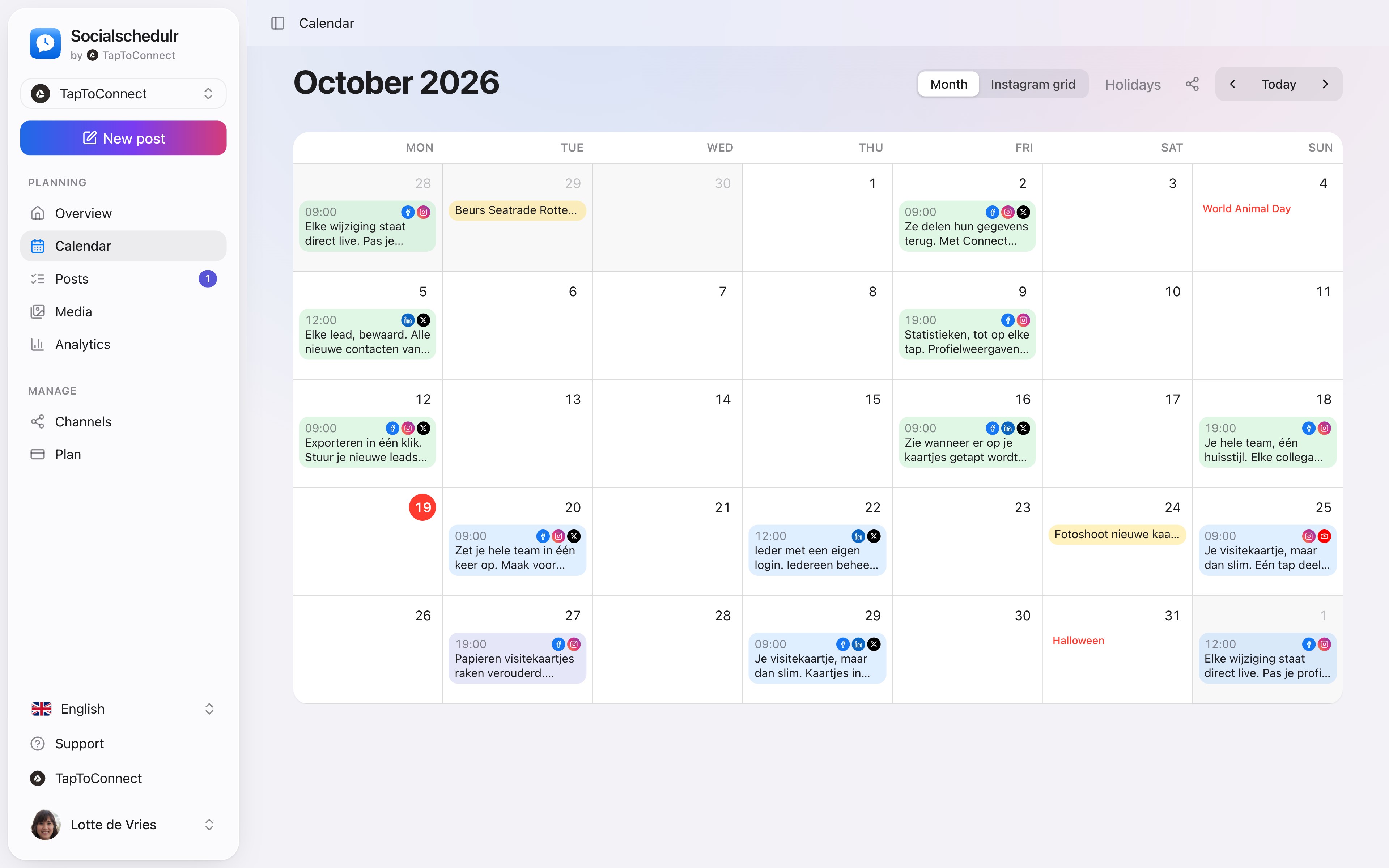
Your whole month at a glance.
All posts from all your channels in one monthly view. The colour tells you straight away what is scheduled, published, failed or still a draft.
In short
- Blue is scheduled, green published, orange in progress, red failed and grey a draft
- Click a day to schedule a post right there
- Notes on a day, visible to your whole team
- Holidays and special days for the Netherlands, Belgium or both
- Switch to the Instagram grid to preview your feed
How it works.
- 1
Open the calendar
You see the current month with all posts from all your channels. Browse with the arrows; Today takes you back.
- 2
Schedule on a day
Hover over a day and click the plus. The post gets that date straight away.
- 3
Adjust where needed
Click a post to edit it, as long as it has not been published yet.
Notes and holidays
Put a note on a day, for example “autumn sale starts” or “shop closed”. Notes appear in yellow in the calendar and everyone in your team sees them.
At the top right, under Holidays, choose the Netherlands, Belgium, both or off. The calendar then shows days such as Valentine’s Day, Mother’s Day, King’s Day, World Animal Day, Black Friday and Sinterklaas, so you can prepare something in time.
Share it with a client
Working for a client or for your manager? Share the calendar with a link. They see the past week and the next two months, without an account. Read more about sharing your schedule.
Step by step
You will find a detailed explanation with every button in the help centre: read the article.
Your whole month at a glance.
All scheduled and published posts from all your channels in one monthly view. The colour tells you straight away whether something is scheduled, published or still a draft.
- Click a day to schedule a post right there
- Notes on a day, such as ‘campaign starts’ or ‘shop closed’
- Holidays and special days for the Netherlands and Belgium
- Schedule a post on any day from the calendar
See your feed before it goes live.
The Instagram grid view shows your scheduled posts above your latest real posts. So you know in advance whether colours and topics work well together.
- Scheduled posts with their date above your existing feed
- Click a post to edit it
- Also handy to show a client the feed in advance
Posts and calendar.
Spoken and subtitled in English. You will find more videos in the help centre.
See it in action.
A few parts of Socialschedulr that fit this topic, shown with sample data.
Your client approves on their phone
Through a link, without an account. Then the post is scheduled automatically.
See what works
Reach, interactions and followers of all your channels, with your best posts.
Frequently asked questions.
Can I move a post to another day?
Yes. Open the post and choose a new date and time. That works as long as the post has not been published yet.
Do I also see posts I published outside Socialschedulr?
The calendar shows the posts you schedule through Socialschedulr. The Instagram grid also shows your latest real posts on Instagram.
Read next
Try it yourself.
All your socials in one calendar. Free for 14 days, no payment details. After that, pick a plan or carry on for free.