
 TapToConnect
Your client approves.
With one link.
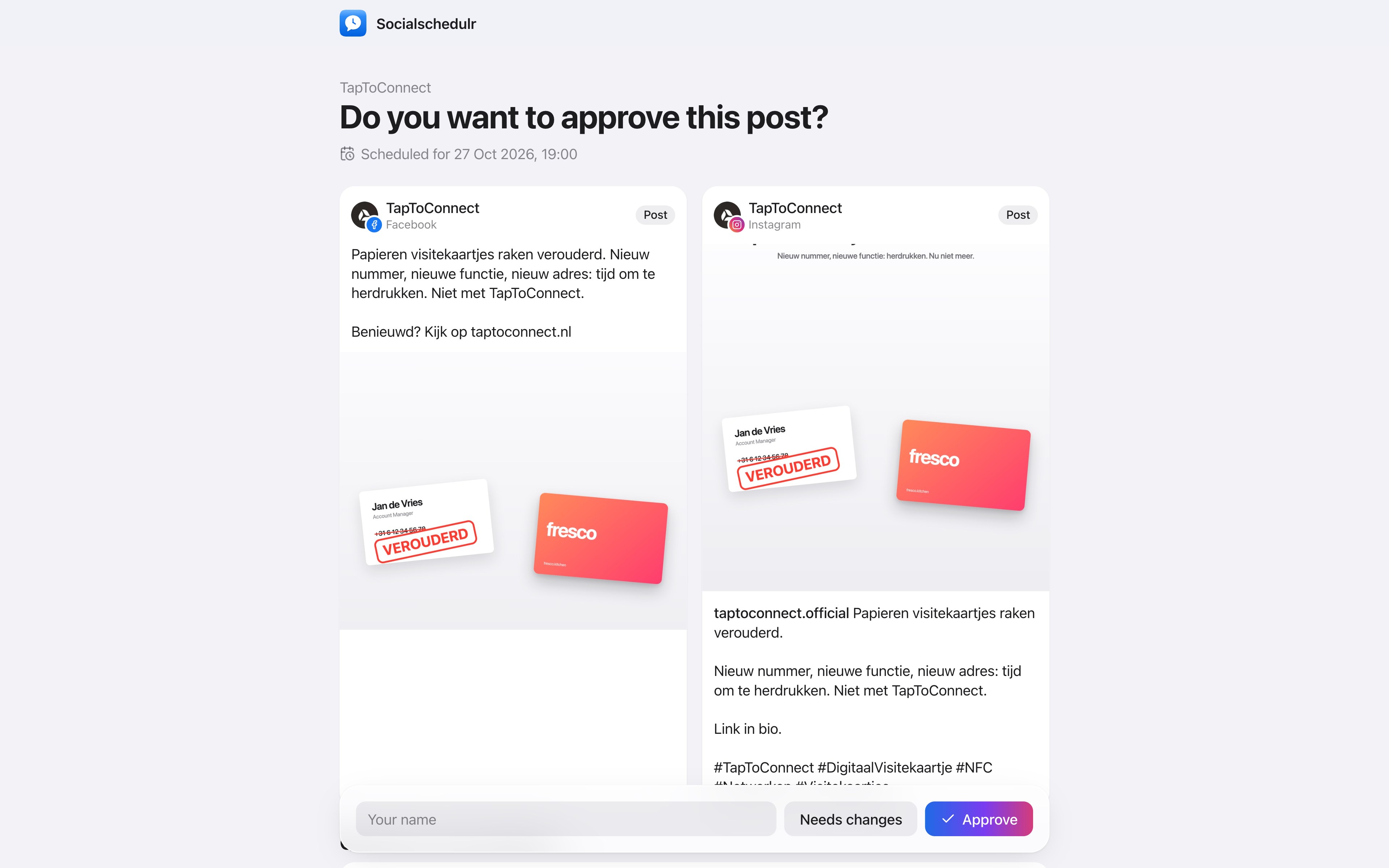
No more screenshots and emails back and forth. Your client sees every post as it will appear online and approves or asks for a change, through a link.
How it works
- Turn on approval for your company.
- Schedule a post. It now waits for approval.
- Copy the client link on the post and send it to your client.
- Your client sees a preview per channel, enters their name and chooses Approve or Changes needed, with a comment.
- Approved? The post goes online at the scheduled moment. If that moment has passed, straight away.
In two steps
Let a colleague look first and then the client. So nothing reaches the client that is not right internally yet.
Or share the whole schedule
With one link your client sees all posts for the next two months, with a preview per channel and your notes. Posts awaiting approval can be approved right there. Drafts stay hidden. See sharing your schedule and approval.
Approved by email or phone?
Then you approve the post on behalf of your client. The activity log shows who approved what.
Why not email or WhatsApp?
Approving by email or WhatsApp seems easy, but often goes wrong. You send a screenshot, your client replies a day later with “looks good, but can the photo be different?”, and by then nobody knows which version is the latest.
With an approval link your client always sees the current version, exactly as it will appear online. The approval is recorded with the post, with name and time. And without timely approval, the post does not go live.
How it works.
- 1
Turn on approval
Choose that posts must be approved first, by a colleague, your client or both.
- 2
Send the link
Your client gets a link and sees the post as it will appear online, per channel.
- 3
Ready to publish
Once approved, the post goes live at the scheduled moment. If your client asks for a change, you see the comment with the post.
Your client approves with one click.
Send a link and your client sees the post exactly as it will appear online, per channel. Approving or asking for changes works straight away, without an account.
- No account or password needed for your client
- In two steps: first your colleague, then the client
- Comments land right next to the post
Let your client look along.
Share a link to your schedule. Your client sees what was published in the past week and what is planned for the next two months, per channel, as it will look.
- Read-only link, no account needed
- A realistic preview per channel
- Revoke the link at any time
Everyone their own role.
Invite colleagues or freelancers as owner, admin or editor. Editors write and schedule, admins approve and manage channels and the subscription.
- Invite with a link that is valid for 7 days
- Two-step verification, which you can require for the whole team
- Activity log: see who did what and when
Team and approval.
Spoken and subtitled in English. You will find more videos in the help centre.
Frequently asked questions.
Does approval cost extra?
No. Approval, in two steps and through the client link too, is included in every plan, Free too.
Can my client comment as well?
Yes. You can discuss every post. Internal comments are only visible to your team; you open a comment to your client if they may read along.
Read next
Try it yourself.
All your socials in one calendar. Free for 14 days, no payment details. After that, pick a plan or carry on for free.