
 TapToConnect
Team and roles.
Everyone their own permissions.
Invite colleagues, freelancers or your client and give them a role. Editors write and schedule, admins approve and manage channels, team and subscription.
In short
- Owner: everything, including cancelling the subscription
- Admin: posts, channels, team and subscription, plus approving
- Editor: creating and scheduling posts
- Invitation link valid for 7 days
- The number of users depends on your plan
How it works.
- 1
Go to Team
Settings, Team.
- 2
Enter email and role
Click Invite and copy the link.
- 3
Send the link
Your colleague creates an account or logs in and joins your team.
Roles side by side
| Role | What can they do? |
|---|---|
| Owner | Everything, including cancelling the subscription. There is one owner. |
| Admin | Manage posts, channels, team and subscription, and approve posts. |
| Editor | Create and schedule posts. No channels, team or subscription. |
Step by step
You will find a detailed explanation with every button in the help centre: read the article.
Everyone their own role.
Invite colleagues or freelancers as owner, admin or editor. Editors write and schedule, admins approve and manage channels and the subscription.
- Invite with a link that is valid for 7 days
- Two-step verification, which you can require for the whole team
- Activity log: see who did what and when
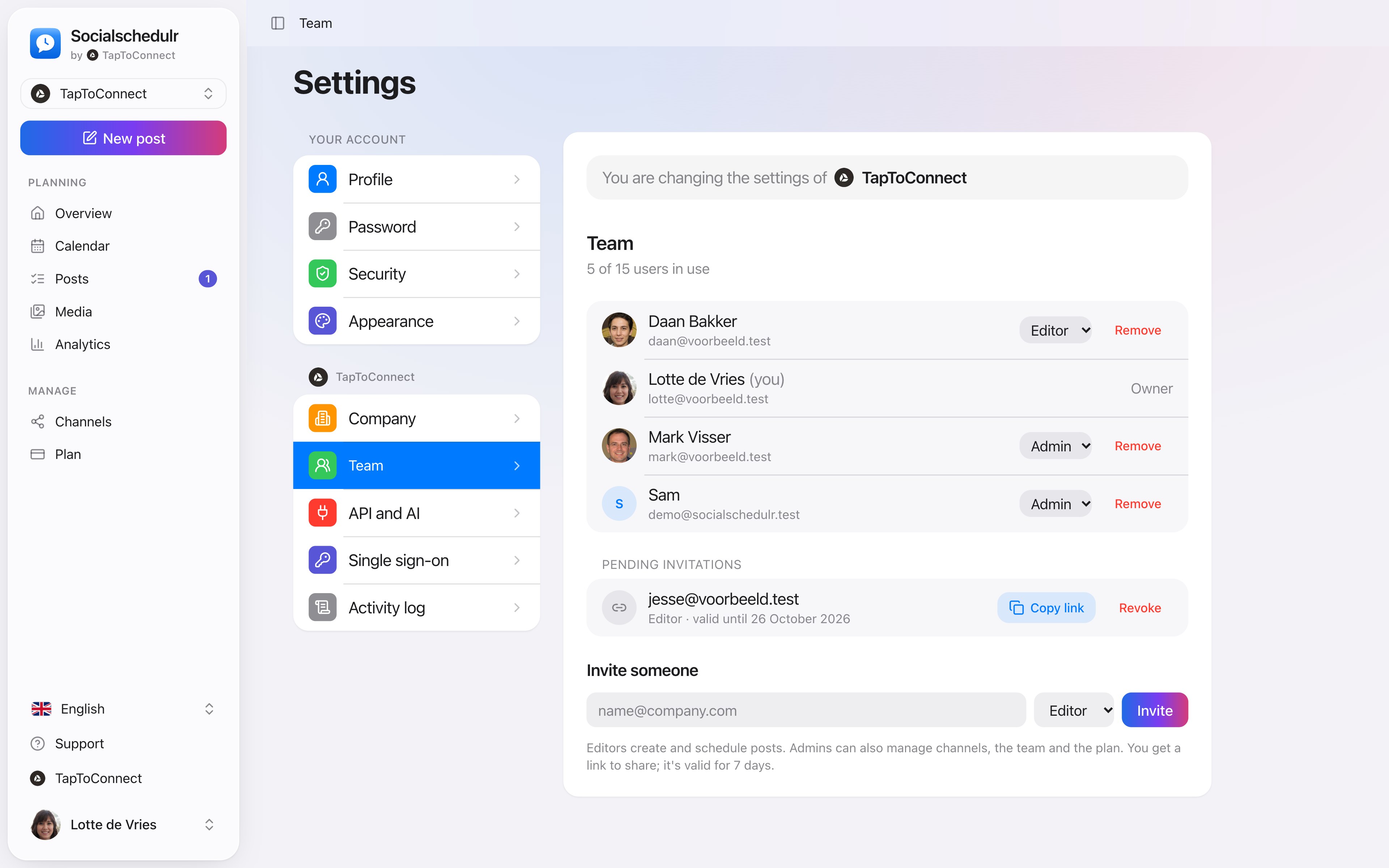
Team and approval.
Spoken and subtitled in English. You will find more videos in the help centre.
See it in action.
A few parts of Socialschedulr that fit this topic, shown with sample data.
Your feed, before it goes live
Scheduled posts appear above your latest real posts.
A whole month in one go
Import your posts from Excel or Google Sheets, up to 200 at once.
Frequently asked questions.
Does an open invitation count?
Yes. Open invitations count towards the number of users in your plan. You can withdraw an invitation at any time.
Try it yourself.
All your socials in one calendar. Free for 14 days, no payment details. After that, pick a plan or carry on for free.