 TapToConnect
Approval.
Nothing goes online without a yes.
Posts by editors only go online after an admin has reviewed them. Want your client to approve too? Turn on the second step.
In short
- Approved internally by an admin first
- Then the client approves, through a link
- Reject with a note; the post goes back to draft
- Approved after the scheduled time? Then it goes online straight away
- Admins see the number of waiting posts in the sidebar
How it works.
- 1
Turn on approval
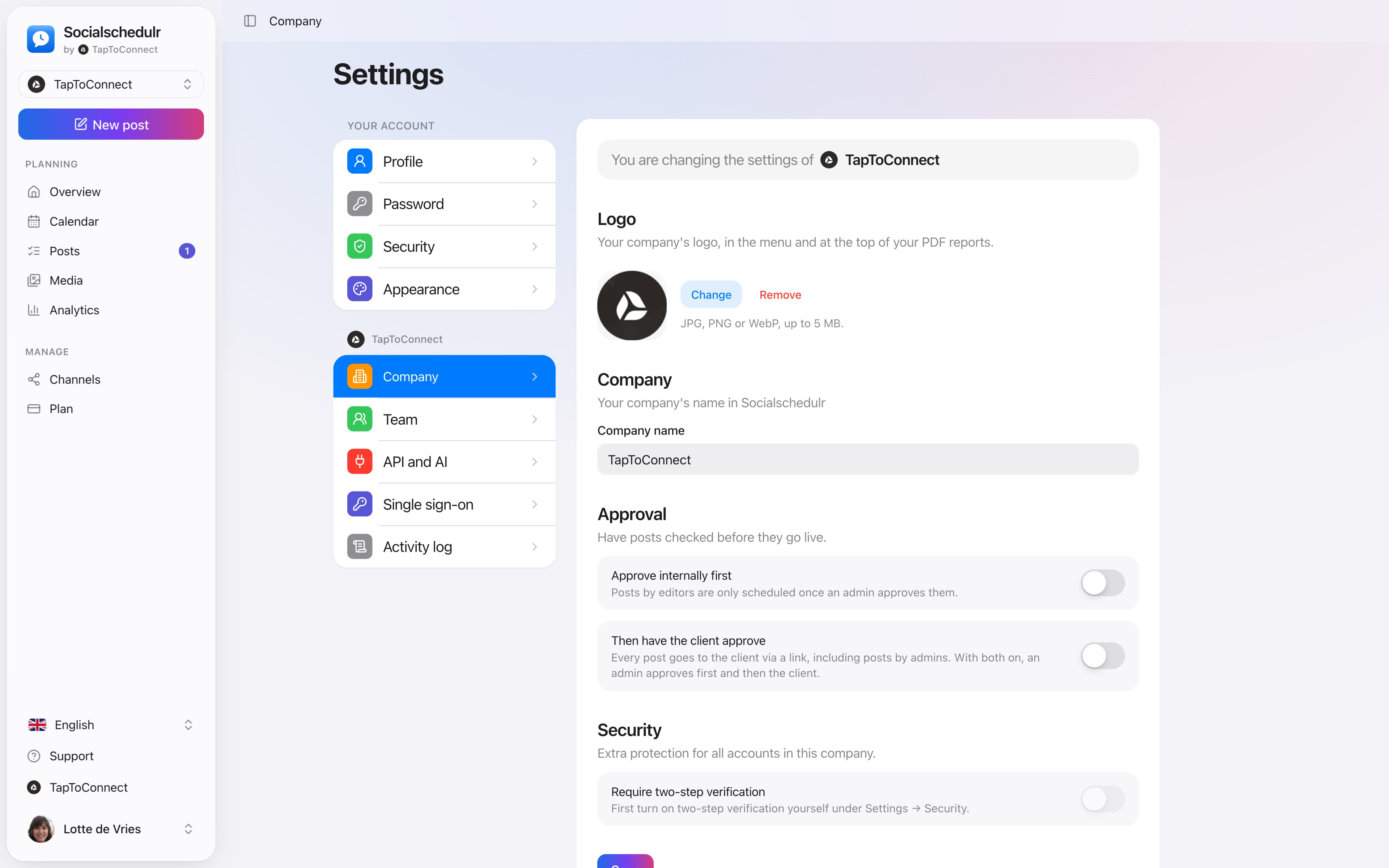
Settings, Company, Approve internally first.
- 2
An editor submits
The post gets the status Awaiting approval.
- 3
An admin decides
Approve, or reject with a short note.
In two steps: first your colleague, then the client
- An editor submits a post. It waits for an admin.
- An admin approves it. It now waits for the client.
- You send the client link. Only when the client approves is the post scheduled.
Has your client already said yes in person or by email? Click Approve on behalf of client.
Step by step
You will find a detailed explanation with every button in the help centre: read the article.
First internal, then the client.
Turn on that posts by editors are checked by an admin first. Want your client to approve as well? Turn on the second step.
- Approve internally first
- Then let the client approve
- Require two-step verification for everyone
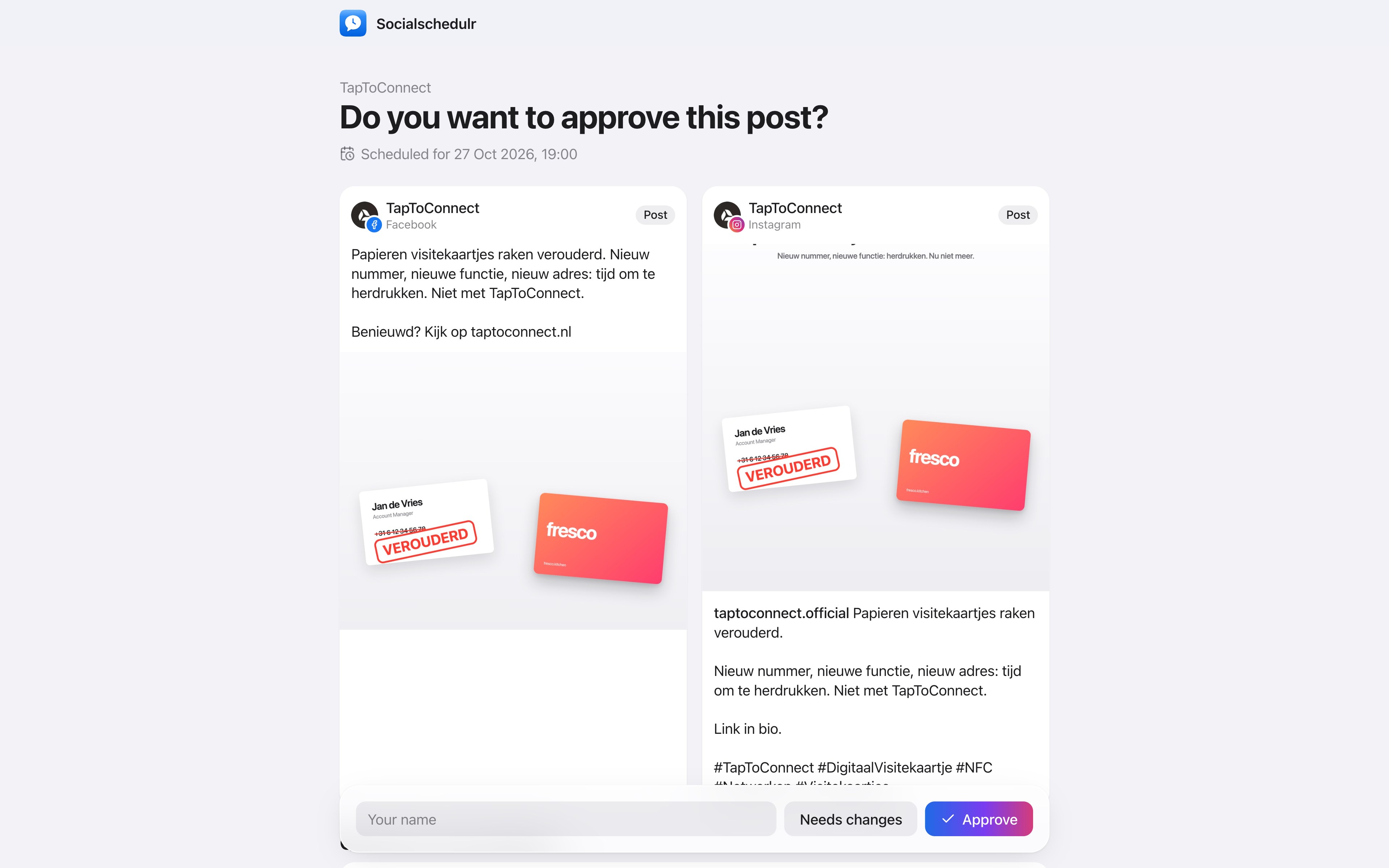
Your client approves with one click.
Send a link and your client sees the post exactly as it will appear online, per channel. Approving or asking for changes works straight away, without an account.
- No account or password needed for your client
- In two steps: first your colleague, then the client
- Comments land right next to the post
Team and approval.
Spoken and subtitled in English. You will find more videos in the help centre.
See it in action.
A few parts of Socialschedulr that fit this topic, shown with sample data.
Reels, TikToks and Shorts
One video, the right format and settings per platform.
Everyone their own role
Owner, admin or editor, with an activity log of who did what.
Try it yourself.
All your socials in one calendar. Free for 14 days, no payment details. After that, pick a plan or carry on for free.