
 TapToConnect
Talk about the post.
Not in your inbox.
On the right side of the editor you find Comments. That is where you write remarks on a post, such as “can the photo be lighter?”. By default only your team sees them.
In short
- Comments are internal by default
- Turn on Visible to client if your client may read along
- Your client can ask a question through the client link
- A speech bubble shows how many comments there are
How it works.
- 1
Open a post
Comments is on the right.
- 2
Write your comment
Internal, or visible to the client.
- 3
Update the post
Everyone sees the discussion with the post.
Why discuss it with the post?
Feedback on a post often comes in by email, chat or phone. After a few rounds nobody knows which remark belonged to which version. When the discussion sits with the post itself, everyone sees at a glance what was asked and what has already been changed.
- An editor asks an admin to look at a text.
- An admin rejects a post and explains why.
- Your client asks a question about a photo through the client link, without an account.
Step by step
You will find a detailed explanation with every button in the help centre: read the article.
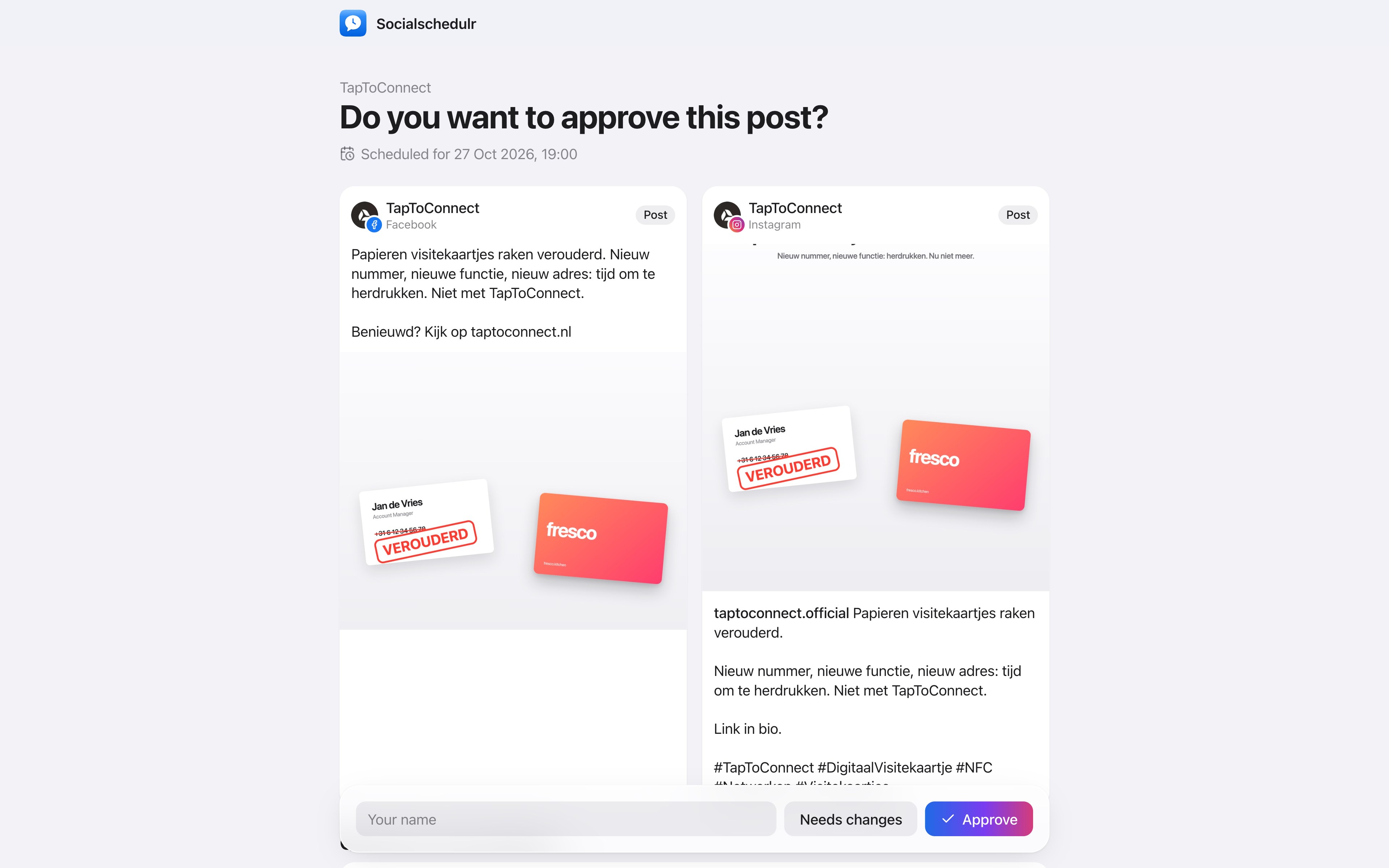
Your client approves with one click.
Send a link and your client sees the post exactly as it will appear online, per channel. Approving or asking for changes works straight away, without an account.
- No account or password needed for your client
- In two steps: first your colleague, then the client
- Comments land right next to the post
Team and approval.
Spoken and subtitled in English. You will find more videos in the help centre.
See it in action.
A few parts of Socialschedulr that fit this topic, shown with sample data.
See what works
Reach, interactions and followers of all your channels, with your best posts.
Schedule from your AI assistant
Ask in plain language. After you confirm, it is in your calendar.
Read next
Try it yourself.
All your socials in one calendar. Free for 14 days, no payment details. After that, pick a plan or carry on for free.