 TapToConnect
Make a content calendar.
In five steps.
A content calendar saves you from having to think up what to post every single day.
What is a content calendar?
A content calendar is an overview of what you post when, on which channel. For each post it holds the date and time, the channel, the theme, the text and the image. It makes you work ahead instead of searching for something to post every morning.
Five steps
- Pick 3 to 5 regular themes, for example product, team, tip, customer and behind the scenes.
- Pick a weekly rhythm: which day gets which theme.
- Add holidays and special days to your calendar.
- Create images in one go: one photo afternoon gives you material for weeks.
- Schedule everything in one afternoon and look at what worked at the end of the month.
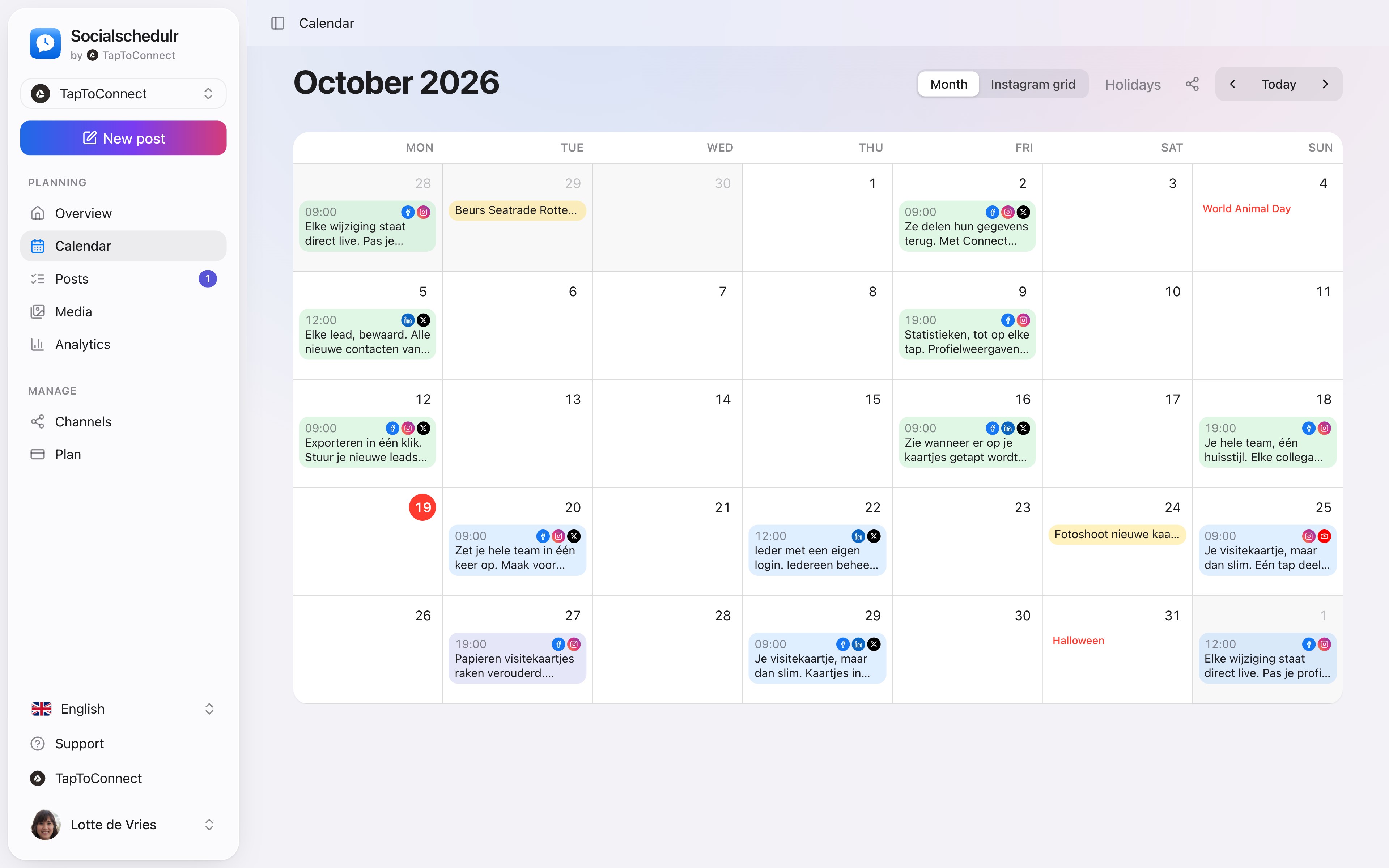
The monthly calendar with scheduled posts per day
An example month for a bike shop
| Week | Monday: tip | Wednesday: behind the scenes | Friday: product or customer |
|---|---|---|---|
| 1 | Tyre pressure in winter | A repair from start to finish (Reel) | New e-bike in stock |
| 2 | How to clean your chain | Meet the team | A customer with their restored old bike |
| 3 | Lights: what is required? | The workshop at 8:00 | Offer: free light check |
| 4 | Storing your bike in winter | How an order comes in | Looking back on the month |
Twelve posts, one clear line. One slot a week can be swapped for something topical.
How far ahead do you plan?
A month works for most small businesses: far enough for peace of mind, short enough to still move things around. Start on holidays and offers two to four weeks earlier, so you have time for good images. Keep one slot free each week for something topical.
Keeping it up to date
- Every week: five minutes to check everything is ready.
- End of the month: find your three best and three weakest posts, compared on engagement per 100 people reached, not on likes.
- Every quarter: check whether your themes still work. Drop one that keeps scoring low.
Spreadsheet or scheduler?
A spreadsheet is a fine start, but afterwards you still have to move everything over. In a scheduler your calendar and your scheduled posts are the same thing: what is in the calendar also goes online. See the Socialschedulr content calendar.
How to do this in Socialschedulr.
Your whole month at a glance.
All scheduled and published posts from all your channels in one monthly view. The colour tells you straight away whether something is scheduled, published or still a draft.
- Click a day to schedule a post right there
- Notes on a day, such as ‘campaign starts’ or ‘shop closed’
- Holidays and special days for the Netherlands and Belgium
- Schedule a post on any day from the calendar
Two hundred posts in one go.
Put your posts in Excel, Numbers or Google Sheets, save as CSV and import them. Date, time, text, link, photo and channels all land in the right place.
- Up to 200 posts per import
- A sample file to get you started
- Choose whether they are scheduled straight away or saved as drafts first
See your feed before it goes live.
The Instagram grid view shows your scheduled posts above your latest real posts. So you know in advance whether colours and topics work well together.
- Scheduled posts with their date above your existing feed
- Click a post to edit it
- Also handy to show a client the feed in advance
Posts and calendar.
Spoken and subtitled in English. You will find more videos in the help centre.
Read next
Try it yourself.
All your socials in one calendar. Free for 14 days, no payment details. After that, pick a plan or carry on for free.