
 TapToConnect
The best time.
From your own numbers.
Not a general average, but your own best moments. When you schedule, pick with one click one of the three moments when your posts got the most engagement.
In short
- Three moments from the past 90 days
- An overview by day and hour in the analytics
- Viewable per channel
- General advice if you have not posted much yet
How it works.
- 1
Schedule a post
Pick your channels and write your text.
- 2
Click the star
Next to the date. You see three moments.
- 3
Pick a moment
It is filled in straight away.
How to read the overview
In the analytics, under Best time to post, you find a grid of days and hours. The darker the square, the more engagement your posts got on average at that moment. Look for patterns above all: is it always early morning, or rather the evening?
Step by step
You will find a detailed explanation with every button in the help centre: read the article.
Your best moment, from your own numbers.
The overview by day and hour shows when your posts got the most engagement. When you schedule, Socialschedulr suggests the three best moments.
- Based on your own posts, not on an average
- Per platform and per channel
- Pick it straight from the editor
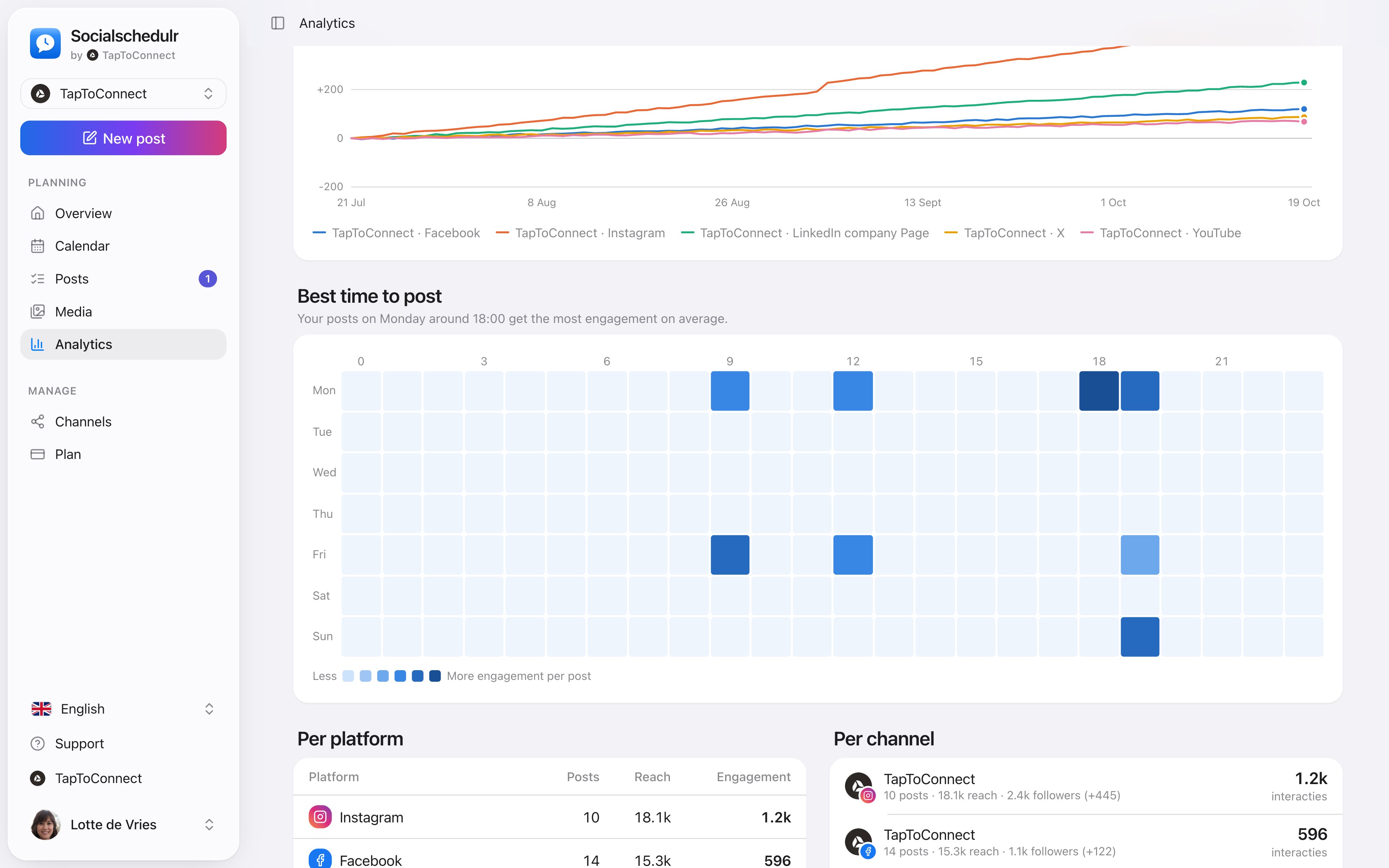
Analytics.
Spoken and subtitled in English. You will find more videos in the help centre.
See it in action.
A few parts of Socialschedulr that fit this topic, shown with sample data.
One post, six channels
Write it once and see how it looks on each channel.
Your client approves on their phone
Through a link, without an account. Then the post is scheduled automatically.
Read next
Try it yourself.
All your socials in one calendar. Free for 14 days, no payment details. After that, pick a plan or carry on for free.